

Yes, true 4K IPTV exists, but you have to verify it because plenty of services labeling themselves “4K” are quietly feeding you upscaled 1080p. Native 4K means a real 3840×2160 frame with a bitrate that supports it, not a scaled-up signal that just looks sharper on the box art. Before you subscribe to anything, run through a short checklist: confirm your device actually decodes HEVC/H.265, test your internet speed under load, and trial a provider that documents its 4K support in writing, like BuyIPTVfor4K.
-
Check device compatibility (Smart TV, Firestick, Apple TV, Android, iOS)
-
Test sustained internet speed, not just the advertised number
-
Trial a provider before committing to a longer plan
Pro Tip: A stream that “looks” 4K on a phone screen tells you nothing. Test on the actual TV you’ll watch it on.
This guide walks through what “4K” really means technically, whether it’s legal to use in the U.S., what your network and hardware need to look like, how to pick a player, and how to troubleshoot when things go sideways.
Key Takeaways
Reliable 4K IPTV depends on verified native resolution, sustained bandwidth near 25 Mbps, HEVC-capable hardware, and a provider willing to document its actual delivery quality.
| Point | Details |
|---|---|
| Verify before you trust the label | Check resolution and bitrate in player stats rather than relying on marketing claims of “4K.” |
| Bandwidth is the most common failure point | Budget roughly 25 Mbps sustained per stream, more with multiple devices active. |
| Hardware decode matters as much as internet speed | Confirm HEVC hardware decoding on your specific device before subscribing. |
| Legitimacy shows up in the details | Transparent billing, real trial periods, and responsive support separate legal providers from risky ones. |
| BuyIPTVfor4K documents its proof points | It lists device support, 4K/HD/SD tiers, EPG, catch-up TV, and a money-back guarantee for testing before committing. |
Table of Contents
What “4K IPTV” Actually Means
True 4K is a resolution standard: 3840×2160 pixels, delivered at a bitrate high enough to preserve detail for live content encoded in HEVC/H.265. Anything below that, and you’re often looking at upscaled 1080p, where the player or TV stretches a lower-resolution image to fill a 4K frame. It looks fine at a glance, but motion, fine text, and sports footage give it away fast.
HEVC/H.265 matters because it compresses 4K video efficiently enough to stream over standard home connections. Without hardware decoding support on your device, that stream stutters or won’t play at all.
-
Native 4K = 3840×2160 with adequate bitrate
-
HEVC/H.265 encoding keeps file sizes streamable
-
Provider infrastructure (CDN quality, encoding pipeline, EPG accuracy) shapes what actually reaches your screen
Pro Tip: Ask a provider directly what encoding they use for 4K channels. A vague answer is itself an answer.
Is 4K IPTV Legal to Use in the U.S.?
IPTV as a technology is completely legal. It’s just a delivery method, the same protocol category that powers plenty of licensed streaming apps. What’s illegal is streaming copyrighted content without the underlying rights, which is a real risk with providers who won’t say where their channels come from.
The practical fix is judging the provider, not the technology. Look for documented content rights, transparent billing, active customer support, and a real trial period rather than a rushed sales pitch.
-
Clear, itemized billing with no anonymous payment-only policy
-
Responsive support you can reach before you pay
-
A trial period long enough to actually test playback
-
Realistic channel counts, not “50,000 channels for $10 a year” claims
Walk away from any service that hides its contact details or won’t explain its trial terms in plain language.
Network and Hardware You Need for Reliable 4K IPTV
Bandwidth is where most 4K IPTV setups fail, not the provider. Here’s what actually holds up:
-
Bandwidth: Budget roughly 25 Mbps sustained per 4K stream, then add headroom. A household running one 4K stream plus a laptop doing video calls needs more bandwidth to avoid drops during peak hours.
-
Connection type: Wired Ethernet is the most reliable option. If Wi-Fi is your only choice, use 5 GHz, and Wi-Fi 6 handles multiple 4K-capable devices far better than older standards.
-
Router configuration: Enable Quality of Service (QoS) to prioritize streaming traffic, and check for channel congestion if neighbors are crowding the same 2.4 GHz band.
-
Device hardware: Your Smart TV, Firestick, Apple TV, or Android box needs HEVC/H.265 hardware decoding, not just software decoding, plus enough RAM and CPU headroom to run the app smoothly.
Pro Tip: Live sports and awards shows spike concurrent household streaming. Test your setup during a real peak event, not a quiet Tuesday afternoon.
How to Choose a 4K IPTV Player or App (Features That Actually Matter)
Not every app that claims “4K support” delivers it. App store listings for players like the Pure M3U 4K IPTV player show what a legitimate player actually needs to advertise: HEVC support, hardware acceleration, and flexible playlist handling.
Look for these essentials before installing anything:
-
HEVC/H.265 decoding with hardware acceleration, not software-only fallback
-
EPG support so you get an actual program guide, not a blank channel list
-
Support for M3U, M3U8, and Xtream Codes playlist formats
-
Subtitle and multi-audio track handling for international content
Platform matters too. Native apps built for tvOS, Android TV, or Fire OS tend to outperform sideloaded generic players because they’re optimized for that hardware’s decode chip. Many of these are “player” apps by design. Platform stores, including the Roku Channel Store’s IPTV 4K listing, make clear that players don’t ship channels; you supply a playlist or provider credentials separately.
Before committing to any app:
-
Load a known 4K test clip and check the player’s debug overlay for actual resolution and bitrate.
-
Run a live channel during a busy viewing window, not just an idle afternoon.
-
Confirm audio sync holds steady over 15 to 20 minutes, not just the first minute.
Step-by-Step Setup and Verification for 4K IPTV
Getting a real 4K signal running takes about fifteen minutes if you go in order.
-
Pick your device and player. Choose a device with confirmed HEVC hardware decoding, then install a player built for that platform.
-
Check your network. Run a speed test with other devices idle, then again under normal household load. You want 25+ Mbps sustained, not just a burst.
-
Load credentials and playlist. Enter your provider’s M3U or Xtream login, let the EPG populate, and enable hardware acceleration in the player’s settings.
-
Set output to 4K. Confirm your TV or box’s display settings are actually forcing 3840×2160 output, not defaulting to 1080p.
-
Verify with stats. Most players show resolution and bitrate in a debug overlay, usually accessible with a long-press or a hidden menu.
-
Stress-test during peak hours. Watch a live sports broadcast or prime-time channel to see if quality holds under real network load.
| Step | What to Check |
|---|---|
| Device setup | HEVC hardware decode confirmed |
| Network test | 25+ Mbps sustained under load |
| Playback verification | Resolution and bitrate shown in player stats |
| Peak-hour test | Stability during live sports or prime time |
Troubleshooting Common 4K IPTV Problems
Buffering is almost always a bandwidth or connection issue. Switch to Ethernet if you’re on Wi-Fi, check how many devices are streaming simultaneously, and drop to a lower bitrate temporarily if the network is saturated.
Suspect an upscaled feed if the picture looks soft during fast motion or text looks blurry at the edges. Request a sample clip from the provider and check its native resolution against the advertised one.
-
Audio sync drift: switch audio tracks or adjust the player’s codec settings, since some HEVC streams pair poorly with certain audio decoders
-
EPG mismatches: refresh the playlist and re-check the provider’s EPG mapping settings
-
Frequent freezing: reduce concurrent connections tied to your account
Pro Tip: If a fix works for ten minutes then fails again, it’s usually a bandwidth ceiling, not a player bug.
BuyIPTVfor4K: A Practical Path to Real 4K Playback
BuyIPTVfor4K documents exactly the kind of proof points this guide has been telling you to look for. The service supports Smart TVs, Firestick, Android, and iOS, streams in 4K, HD, and SD depending on the channel, and includes catch-up TV, a full EPG, and anti-freezing technology built to handle the exact buffering issues covered above.
Subscription options run from monthly to annual, so you can start short and extend once you’ve confirmed stable playback on your setup. Setup support is available for device-specific configuration, and a money-back guarantee gives you room to test without much downside.
-
Multi-device support across the platforms readers actually use
-
Documented 4K/HD/SD tiers rather than a blanket unverified claim
-
EPG and catch-up TV built in, not bolted on
-
Anti-freezing technology aimed at the exact stability issues covered above
Pro Tip: Run the verification checklist from this guide during your trial window, not after you’ve committed to a full year.
HLS, DASH, and Multicast: The Protocols Behind 4K Delivery
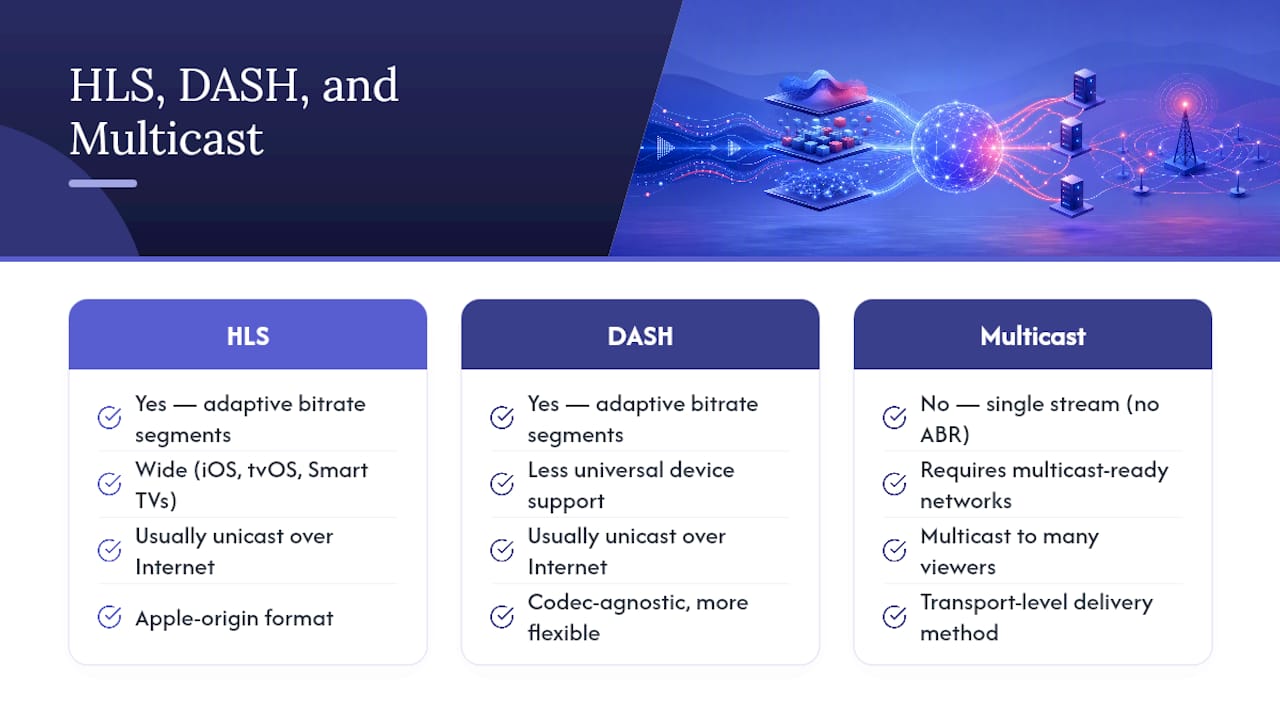
The protocol carrying your stream affects how it starts, how it recovers from network hiccups, and how consistent the quality stays. Two adaptive streaming formats dominate IPTV: HLS (HTTP Live Streaming) and MPEG-DASH. Both break video into small segments and let the player switch quality on the fly based on available bandwidth, which is why a stream sometimes dips in quality for a few seconds during a spike in network traffic rather than freezing outright.

HLS, originally built by Apple, is the more widely supported format across iOS, tvOS, and most Smart TV platforms, which is part of why it dominates commercial IPTV delivery. DASH is codec-agnostic and technically more flexible, but device support is less universal, so fewer consumer IPTV services build around it exclusively.
Then there’s the transmission method underneath the protocol: unicast versus multicast. Unicast sends a separate stream copy to every individual viewer, which is how nearly all consumer IPTV services operate today because it works over standard internet infrastructure. Multicast sends a single stream that multiple viewers tap into simultaneously, which is more efficient at scale but requires network infrastructure that most home internet providers don’t support outside managed telecom IPTV deployments.
For the average subscriber, this mostly plays out as a background detail. What you notice is the practical result: HLS-based unicast delivery, adaptive bitrate switching, and how gracefully a service handles bandwidth dips. A provider that adapts smoothly under pressure, rather than freezing and restarting, is usually running a better-built delivery pipeline regardless of which protocol sits underneath.
Comparing Legal 4K IPTV Providers on Price and Content
Legitimate 4K IPTV pricing generally follows a tiered subscription model: monthly, quarterly, semi-annual, and annual plans, with per-month cost dropping as commitment length increases. Content availability tends to track the same pattern across most legal providers: broader international channel packages (UK, USA, Europe, Asia), video-on-demand libraries, and catch-up TV as a near-universal feature at this point.
Where providers actually differentiate is in the details that matter for playback quality rather than the marketing headline. Some questions worth asking before you commit to any service:
-
Does the provider specify which channels are true 4K versus HD, or is “4K” applied as a blanket label to the whole package?
-
Is there a real trial period, or just a short refund window that expires before you’ve tested anything?
-
What payment methods are supported, and is billing transparent with recurring charges clearly disclosed?
-
How large is the VOD library, and is it updated regularly or static?
BuyIPTVfor4K structures its plans around this same tiered model, spanning monthly through annual subscriptions, with content availability spanning UK, USA, European, and Asian channel catalogs alongside its VOD library. Pricing that scales with commitment length is standard across the legal IPTV space, so the real differentiator isn’t the pricing structure itself. It’s whether the provider is upfront about which channels are genuinely 4K, what the trial actually covers, and whether support responds before you’ve paid rather than after.
What Content Is Actually Available in 4K on IPTV
4K IPTV content generally falls into four buckets, and each behaves differently in terms of quality consistency.
Live TV is the trickiest category because 4K broadcast infrastructure still isn’t universal. Many broadcasters upscale their own signal before it even reaches an IPTV provider, so “live 4K news” is often 4K in name only. Sports broadcasts are the exception when providers invest in it. Major live sporting events increasingly get genuine 4K production, though local and regional sports coverage lags behind.
Video-on-demand is where true 4K is easiest to find and verify. Movie libraries sourced from studio-provided masters are far more likely to be native 4K, since the source material already exists in that resolution and doesn’t need upscaling. VOD libraries also tend to include detailed metadata, sometimes showing bitrate and resolution directly in the app, which makes verification simple.
Movies specifically benefit from this pipeline the most, since theatrical and streaming releases are commonly mastered in 4K from the start. Sports content is the category most worth scrutinizing since fast motion exposes upscaling and low bitrate almost instantly, in ways a static talk show or drama simply doesn’t.
How DRM and Encryption Affect 4K IPTV Access
Digital rights management protects premium 4K content, particularly licensed sports and first-run movie releases, but it also introduces friction that can degrade the exact experience you’re trying to get.
DRM systems require your device and player to support specific decryption standards. If your player or device doesn’t support the DRM scheme a channel uses, the stream either won’t play at all or gets forced down to a lower resolution as a fallback, since some DRM tiers only unlock full 4K on devices that pass a hardware security check. This is part of why the same subscription can look different in quality depending on whether you’re watching on a phone versus a certified Smart TV.
Encryption itself, separate from DRM, adds a small amount of processing overhead, but modern hardware decoders handle this without a meaningful quality hit on capable devices. The bigger practical issue is compatibility: older streaming boxes or budget Android devices sometimes lack the certified decryption modules that premium 4K content requires, capping playback at HD even when the underlying content is genuinely 4K.
If you’re consistently capped below 4K on content that should support it, check whether your device passes DRM certification requirements before assuming it’s a bandwidth or provider issue.
Where 4K IPTV Technology Is Headed
AV1 is the codec to watch. It compresses video more efficiently than HEVC, meaning better quality at the same bitrate, or the same quality at a lower one, and it’s steadily gaining hardware decode support in newer Smart TVs and streaming devices. As AV1 adoption grows, expect providers to shift toward it for 4K delivery, easing bandwidth demands without sacrificing picture quality.
8K IPTV content remains mostly experimental for now, limited by both content availability and the bandwidth required to deliver it reliably over consumer internet connections. It’s a longer-term horizon rather than a near-term shift.
Cloud-based encoding and smarter CDN routing are also improving stream stability, letting providers adapt bitrate more intelligently based on regional network conditions rather than applying a one-size bitrate ceiling globally. Expect continued growth in native app support across smart TV platforms, reducing reliance on generic sideloaded players and closing the gap between what a provider advertises and what your hardware can actually decode.
Testing Priority: Network, Device, Player, Then Provider
If you take one thing from this guide, test in that exact order: network first, device second, player third, provider trial last. Most “bad 4K IPTV” complaints trace back to a bandwidth ceiling or a device that can’t hardware-decode HEVC, not a bad provider.
Managed subscriptions make sense once you value your time more than tinkering. You get support, documented uptime, and a provider that already handles encoding and CDN routing correctly. DIY playlists still appeal to readers who want maximum control and lower cost, but they also inherit every troubleshooting step in this guide as your own responsibility. Check the setup guide if you’re leaning toward the managed route.
— ANASS
Official Docs and Testing Tools
For device and app verification, check the source material directly rather than relying on secondhand reviews:
- Google Play’s help center for verifying app credibility and reporting problematic listings
Get Set Up With Working 4K IPTV Today
Everything in this guide points toward one practical outcome: a subscription that documents its 4K support instead of just advertising it. That’s the gap BuyIPTVfor4K is built to close. Rather than piecing together a playlist app, a separate content source, and guesswork about whether your device can actually decode what you’re paying for, you get device support across Smart TVs, Firestick, Android, and iOS, a real EPG, catch-up TV, and anti-freezing technology built around the exact buffering problems covered earlier in this guide.
Subscription lengths run monthly through annual, so you can start with a shorter commitment while you run the verification checklist from this guide: resolution, bitrate, and stability during a peak viewing event before extending. A money-back guarantee gives you room to test without much risk if something about your setup doesn’t line up.