

The practical baseline for one reliable 4K stream is around 25 Mbps. That number holds even though Netflix lists 15 Mbps and YouTube sits around 20 Mbps, because those published minimums assume perfect conditions that rarely exist in a real living room.
Before you upgrade anything, run this three-step check:
- Test in-room throughput at the actual streaming device, not on your phone in another room.
- Switch to Ethernet if you can, or move to 5 GHz Wi-Fi if you can't.
- Confirm your device and subscription both actually support 4K. Plenty of failures have nothing to do with speed at all.
Key Takeaways
Reliable 4K playback depends on sustained speed at the device, not the number advertised by your ISP or listed on a platform's requirements page.
| Point | Details |
|---|---|
| Use 25 Mbps as your baseline | Plan for 25 Mbps per stream even though some platforms list minimums as low as 15 Mbps. |
| Test at the device, not elsewhere | Run three tests at the TV during normal viewing hours and record the lowest result. |
| Budget for data caps | Expect 7 to 16 GB per hour of 4K viewing, more with HDR or high-motion content. |
| Live sending needs upload headroom | Plan stable upload at 1.5x to 2x your contribution bitrate, not just matching it. |
| BuyIPTVfor4K handles the setup variables | Device compatibility, anti-freezing streaming, and guided setup remove most common 4K playback failures. |
Table of Contents
- What Are the Real 4K Streaming Requirements?
- What Devices Do You Need for 4K Streaming?
- How Do You Test Your Real 4K Streaming Speed?
- How Much Internet Speed Do You Need for Multiple 4K Streams?
- What Upload Speed Do You Need for Live 4K Streaming?
- How Do You Fix 4K Buffering or Downscaling Issues?
- How BuyIPTVfor4K Supports Reliable 4K Playback
- Want 4K Content Without the Network Guesswork?
- Sources
What Are the Real 4K Streaming Requirements?
Published minimums and real-world reliability are two different things. Netflix will tell you 15 Mbps gets you 4K, YouTube recommends around 20 Mbps, and services like Disney+, Apple TV+, and Max often list 25 Mbps or close to it. Those platform-published requirements reflect ideal, uncontended connections, which is not the connection sharing your house with a laptop backup and someone's video call.
That gap exists partly because of adaptive bitrate streaming. Your player constantly adjusts quality based on available throughput, so a brief dip doesn't necessarily crash your stream. It just drops resolution for a few seconds. The problem is that frequent dips train the player to sit at a lower resolution long after your connection recovers, which is why a "technically sufficient" 15 Mbps connection often delivers a soft, inconsistent picture instead of true 4K.
That's why the editorial baseline sits at 25 Mbps per stream rather than the bare minimum. It absorbs normal fluctuation without forcing a downgrade.
Data usage matters just as much as speed if you're anywhere near a cap. A single 4K stream burns through roughly 7 to 16 GB per hour, with HDR content, high-motion footage like sports, and some Apple TV+ titles pushing toward the higher end.
| Sustained speed | Approximate data use per hour |
|---|---|
| Around 15 Mbps | Several gigabytes |
| Around 20 Mbps | Several gigabytes |
| Around 25 Mbps | Several gigabytes |
| Higher speeds with HDR/high motion | Higher data usage |
A three-hour movie night in 4K can consume a substantial amount of data. Anyone on a capped plan should treat that math as a strict budget line, not a rough estimate.
What Devices Do You Need for 4K Streaming?
Bandwidth alone won't get you a 4K picture. Three things have to line up simultaneously, and missing any one of them silently caps your quality at 1080p with no error message telling you why.
- A 4K-capable display. Sounds obvious, but plenty of "4K TVs" only accept 4K over specific HDMI ports.
- A 4K-capable streaming device or app. Older streaming sticks and some smart TV apps quietly serve HD even on a 4K screen because the app itself caps resolution.
- A subscription or content library that actually includes 4K. Base tiers on several major platforms serve HD only.
HDMI version trips people up constantly. HDMI 2.0 handles standard 4K at 60Hz fine, but if you want HDR with a high refresh rate, you likely need HDMI 2.1 and a cable rated for it. If your TV has one HDMI 2.1 port buried among three 2.0 ports, plugging your streaming box into the wrong one silently strips out HDR.
Codec support is the other silent killer. Most 4K streaming relies on HEVC (H.265), with some platforms using VP9 or the newer AV1. HDR comes in flavors too, mainly Dolby Vision and HDR10, and older devices sometimes decode the video fine while dropping the HDR metadata entirely, leaving you with a flat, washed-out 4K image that looks worse than well-mastered HD.

How Do You Test Your Real 4K Streaming Speed?
Your ISP's advertised speed and your actual usable throughput at the TV are frequently two very different numbers, and the only way to know which one you're getting is to test where it counts.
- Run three speed tests at your TV or streaming device, during the time of day you actually watch. Evening peak hours strain neighborhood bandwidth more than a Tuesday morning test ever will.
- Compare wired versus wireless results. Plug in an Ethernet cable if the device supports it, run the same test, and see how much the number changes.
- Record your minimum sustained result, not your best one. The lowest number across repeated tests is the honest figure, because that's the floor your stream will hit during peak load.
If wireless is your only option, prioritize 5 GHz or Wi-Fi 6 over the older 2.4 GHz band. 2.4 GHz travels farther but carries far less data, and it's the same frequency your microwave and half your neighbors' routers use. Central router placement, or a mesh system if your home has dead zones, closes most of the remaining gap. On the router itself, enabling Quality of Service to prioritize your streaming device, updating firmware, and checking what else is chewing bandwidth in the background (cloud backups love to run exactly when you sit down to watch something) all move the needle.
Pro Tip: Test your speed for at least three separate sessions across a week before blaming your ISP. A single bad reading during a neighborhood outage will send you chasing a plan upgrade you don't actually need.
How Much Internet Speed Do You Need for Multiple 4K Streams?
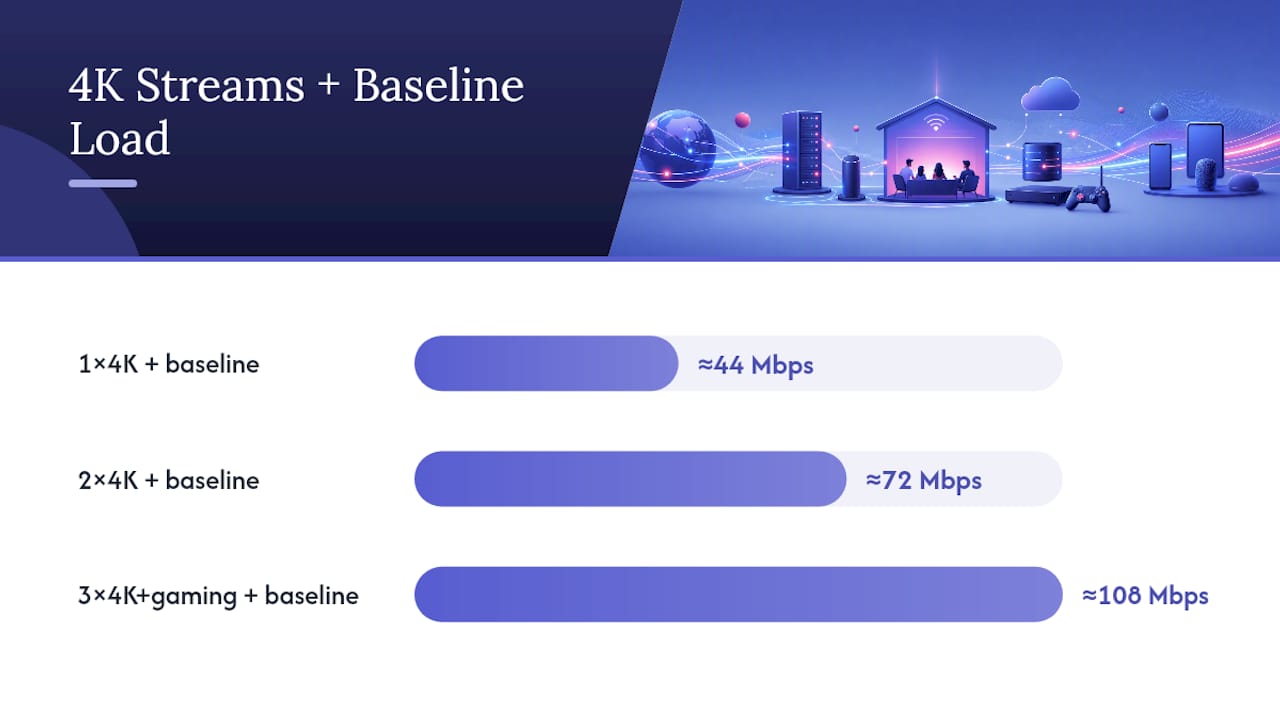
The math scales linearly from the 25 Mbps baseline, then needs a cushion on top for anything else happening on the network.
- One 4K stream: target 25 to 32 Mbps.
- Two 4K streams: target 50 to 63 Mbps, roughly double the single-stream figure plus margin.
- Three 4K streams plus gaming: target 85 to 100+ Mbps.
That headroom is also why plans get sold in tiers of 50, 100, and 200+ Mbps rather than oddly specific numbers matching exact stream counts.
Background load matters more than most people budgeting for streaming realize. Cloud photo backups, smart-home cameras, and game console downloads all run silently and can quietly consume 10 to 20 Mbps you were counting on for your 4K stream. If your household runs several smart devices constantly, size your plan for that baseline load first, then add your streaming needs on top.
What Upload Speed Do You Need for Live 4K Streaming?
Watching 4K and sending it live are not the same problem, and treating them the same is why so many live 4K broadcasts stutter even on connections that stream Netflix perfectly. Downloading tolerates brief dips because your player buffers ahead. Uploading a live encode has no such buffer. Miss your bitrate for even a few seconds and the stream drops frames or disconnects entirely.
That's why stable upload headroom needs to run 1.5x to 2x your target contribution bitrate, not match it exactly.
| Contribution target | Encoder output | Recommended upload headroom |
|---|---|---|
| 4K | 25 to 32 Mbps | Consider 1.5 to 2 times the encoder output |
| 4K60 | 50 to 63 Mbps | Consider 1.5 to 2 times the encoder output |
Encoder stability and frame rate settings matter as much as the raw number. A lower, steady bitrate beats a higher one that occasionally spikes past your available upload. Serious creators keep a fallback profile ready, one that automatically drops resolution or bitrate rather than dropping the connection entirely, and monitor the encoder output in real time rather than trusting the upload speed alone.
How Do You Fix 4K Buffering or Downscaling Issues?
Work through these in order rather than jumping straight to a plan upgrade, since most fixes here cost nothing.
- Confirm the content and your subscription tier actually include 4K. Base tiers on several services default to HD.
- Test speed at the device itself, not on a different device in another room.
- Try a wired Ethernet connection if your device has a port, even temporarily, to isolate the problem.
- Reboot your router and streaming device, then retest. This resolves more issues than people expect.
- Check your HDMI port and TV picture settings. A device plugged into the wrong port can silently disable HDR.
- Pause other downloads or backups during your test to rule out a temporary bandwidth squeeze.
If your minimum sustained speed test comes in well under 25 Mbps consistently, that's a real conversation for your ISP. If it's comfortably above 25 Mbps and you're still seeing HDR flicker or stutter, the fix usually lives in your HDMI settings or app version, not your broadband plan.
Pro Tip: Update your streaming app and device firmware before anything else. A surprising number of "network" problems are actually a codec mismatch fixed by the update you've been ignoring.

How BuyIPTVfor4K Supports Reliable 4K Playback
Getting every piece of this right, display, device, codec support, subscription tier, and network, takes real troubleshooting time. BuyIPTVfor4K removes several of those variables by delivering 4K content built for the hardware you already own.
- Broad device compatibility across Smart TVs, Firestick, Android, and iOS, so app-level resolution caps aren't guesswork.
- Setup guidance for connecting your device correctly the first time, including the HDMI and app configuration steps that commonly get skipped.
- Anti-freezing technology aimed at the buffering issues that usually trace back to inconsistent throughput.
- Support and guarantee options, plus flexible payment methods, for anyone who wants a tested path rather than a trial-and-error one.
Readers who'd rather skip the troubleshooting sequence entirely can start with the setup walkthrough instead.
Want 4K Content Without the Network Guesswork?
If you've read this far and you're still not sure whether your setup can hold a steady 4K stream, there's a simpler path than testing cables and rebooting routers on a Sunday night. BuyIPTVfor4K packages over 45,000 live channels and 160,000 on-demand titles in 4K, HD, and SD, already built for the devices you own, so the codec and app-compatibility questions in this guide are handled before you ever press play.

That matters most for readers juggling multiple regions or devices. Instead of confirming HDMI settings on three different TVs, you get one service with catch-up TV, an EPG, and anti-freezing streaming across UK, USA, European, and Asian channel packages. Plans run from monthly to annual. They support crypto and other flexible payment methods, and come with a money-back guarantee if the setup doesn't fit your household.
Browse the 4K channel lineup to see what's included, or head straight to the main plans page to compare subscription lengths and get started today.
What Support Calls Taught Us About 4K Failures
Two patterns come up again and again in support conversations. The first is a device plugged into the wrong HDMI port, quietly stripping out HDR while the picture still looks "fine enough" that nobody notices for weeks. The second is blaming the internet plan when the real culprit is a weak signal three rooms from the router.
Test in the room where you watch before you call your ISP or upgrade anything. Nine times out of ten, the fix is free.
— ANASS
Sources
- 4K Streaming Internet Speed Requirements (2026) | SpeedTestHQ
- 4K streaming bandwidth: internet speed, bitrate and upload guide | Callaba
- Internetproviders
- How much data does streaming use? (2025 guide) | Recharge