
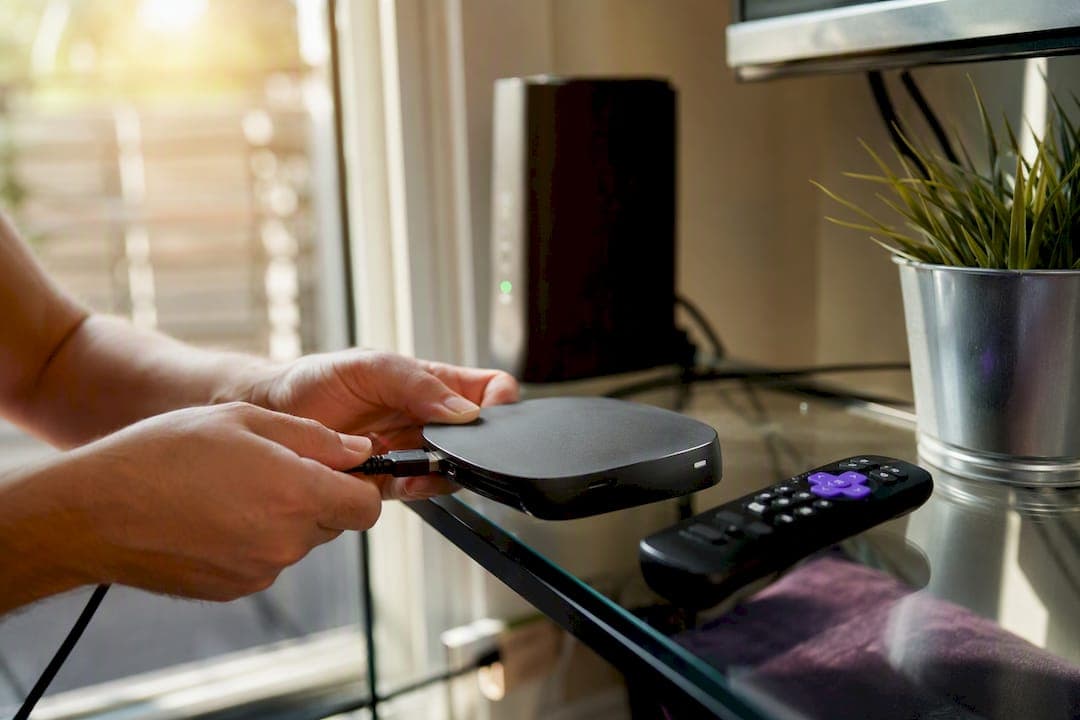
You can absolutely run IPTV on Roku, just not by installing a typical IPTV app from the Channel Store the way you would on a Firestick. The reliable paths are Channel Store M3U players, screen mirroring from Android or Windows, Apple AirPlay, Plex with an M3U tuner, or developer sideloading for advanced users. Start with a Channel Store M3U player. It's the fastest way to get channels on screen with the least fuss.
TL;DR:
- Using a Channel Store M3U player is the simplest method to stream IPTV on Roku, requiring only a playlist URL or activation code.
- Screen mirroring from Android or Windows offers flexibility but depends heavily on Wi-Fi quality and configuration, making it less stable for daily use.
- Apple AirPlay provides smoother streaming for Apple users, with better audio-video sync and lower device strain compared to mirroring.
- Plex with a dedicated server creates a reliable, multi-device IPTV experience but requires ongoing hardware setup and time investment.
- Sideloading private channel packages is complex and limited to one active app, making it unsuitable for casual users seeking consistent access.
Table of Contents
- Why Roku Limits IPTV Apps (And How to Get Around It)
- How Do You Set Up a Channel Store M3U IPTV Player?
- How Do You Mirror IPTV From Android or Windows?
- Is AirPlay Better Than Mirroring for IPTV on Roku?
- Can Plex Turn IPTV Into a Real Live TV Experience on Roku?
- What Are the Risks of Sideloading IPTV Channels on Roku?
- How Do You Fix Buffering and EPG Problems on Roku IPTV?
- What Roku Owners Get Wrong About IPTV Setup
- Get Reliable Channels and Setup Support From BuyIPTVfor4K
- Where to Go for Official Setup Help
- Sources
Why Roku Limits IPTV Apps (And How to Get Around It)
Roku runs a closed operating system that keeps most third-party IPTV apps out of its Channel Store entirely. Unlike Android TV boxes or Firesticks, Roku won't let you install an APK from outside its official store, so the usual IPTV Smarters or TiviMate route is off the table by default. That single restriction, explained in detail on Roku's Channel Store listings, is the reason this guide exists. Every method below is a workaround built to fit inside that closed system rather than fight it.
Here's how the five practical methods stack up against each other.
- Channel Store M3U players: install directly from Roku's store, then paste your M3U playlist URL or enter an activation code. Needs an M3U link from your provider. Easiest overall.
- Screen mirroring (Android/Windows): casts your phone or laptop screen to Roku. Works with any app you already have, but quality depends entirely on your Wi-Fi.
- AirPlay (iOS/Mac): similar to mirroring but generally more stable audio and video sync. Apple hardware only.
- Plex with an M3U tuner or Threadfin: turns your IPTV playlist into a proper Live TV channel guide inside Plex. Needs a computer or NAS running as a server.
- Developer sideloading: installs a private channel package directly onto Roku. Powerful, but Roku only allows one sideloaded channel at a time.
If you want full native app support without any of these workarounds, buying an inexpensive Firestick 4K alongside your Roku is often the more practical move, and plenty of IPTV users keep both around for that reason.
How Do You Set Up a Channel Store M3U IPTV Player?
This is where most people should start. It gets you watching live channels in under ten minutes, and it doesn't require touching developer settings or a second device.
- On your Roku home screen, go to the Channel Store and search "IPTV Player" or "IPTV Smarters." Several listings, including IPTV Smarters on the Roku Channel Store, accept an M3U URL rather than native Xtream Codes support.
- Install the channel and open it from your Roku home screen.
- Request your M3U playlist URL from your IPTV provider. This is a web address ending in something like ".m3u8" that contains your entire channel list. Some providers issue Xtream Codes credentials instead (a server URL, username, and password), which work with apps built to accept that format specifically, so check which one your provider gave you before you start.
- On the activation screen, paste the M3U URL or enter the activation code shown on your TV into the provider's web portal.
- Wait for the channel list and EPG to populate, then browse and confirm playback on a few channels.
If the URL comes back invalid, double check for extra spaces or a truncated link, since M3U URLs are long and easy to clip when copying on a phone. If the EPG (program guide) doesn't populate, give it a few minutes; some providers refresh guide data on a delay. Slow channels usually point to your home network, not the app itself, something the next sections cover in more depth.
Pro Tip: Save your M3U URL in a notes app before you start. You'll need to re-enter it if you switch apps or reinstall, and retyping a 100-character link on a Roku remote is nobody's idea of fun.
How Do You Mirror IPTV From Android or Windows?
Screen mirroring turns your Roku into a display for whatever's playing on your phone or laptop. It's the best option if you already have a full-featured IPTV app installed elsewhere and don't want to mess with playlist URLs on the TV itself.
- On Roku, go to Settings > System > Screen mirroring and set it to "Prompt" or "Always allow." Roku's own support documentation covers the exact menu path for screen mirroring if your settings menu looks different from the steps above.
- On Android, open Quick Settings and tap Smart View or Cast, then select your Roku device. On Windows, press Windows key + K to open Connect and choose the Roku.
- Open your IPTV app on the phone or PC and start playing a channel. It should now appear on the Roku screen.
Keep your phone and Roku on the same 5GHz Wi-Fi band, since mixing bands is the top cause of dropped mirroring sessions. Wiring the Roku itself to Ethernet, if your model supports it, takes even more pressure off the wireless connection. Also disable battery saver mode on your phone before mirroring. It throttles background processes and can kill the connection mid-show.
Pro Tip: If you hear an audio echo, it's almost always the phone's own speaker still playing alongside the TV. Mute the phone manually rather than relying on the mirroring session to do it.
Is AirPlay Better Than Mirroring for IPTV on Roku?
For Apple users, yes, generally. AirPlay tends to deliver smoother audio and video sync than Android-style mirroring and puts far less strain on your device's battery.
- Confirm your Roku model supports AirPlay (most Roku models from the last several years do), then enable it under Settings > Apple AirPlay and HomeKit.
- Install a compatible IPTV app on your iPhone, iPad, or Mac and start playing a channel.
- Open Control Center (or the AirPlay icon in the app), select your Roku, and the stream routes over to the TV.
AirPlay's advantage over Android mirroring comes down to how directly Apple hardware routes the video stream, with less transcoding overhead along the way. That said, if you're watching daily rather than casually, a Channel Store M3U player or a Plex setup will serve you better long term than routing through your phone every single night.
Can Plex Turn IPTV Into a Real Live TV Experience on Roku?
Plex is the closest thing to a proper cable-box experience you'll get on Roku, and it's worth the setup time if you want IPTV available on every device in your house, not just one TV.
- Install Plex Media Server on a PC, Mac, or NAS that stays powered on.
- Add your IPTV playlist as a custom M3U tuner, or run it through Threadfin middleware first for cleaner channel mapping, a workflow documented step by step by IPTVRepair.
- Point Plex to your provider's EPG data source so the guide populates with real program listings, not blank tiles.
- Open the Plex app on Roku and your IPTV channels now show up under Live TV, alongside any other Plex content.
The trade-off is that Plex needs a server running around the clock, and initial setup with Threadfin takes real time to get channel numbers and logos mapped correctly. In exchange, Plex with a custom tuner buffers better than mirroring and works across every Plex-connected device in the house at once.
Pro Tip: Run Plex on a machine that's already on for other reasons, like a home server or NAS, rather than buying hardware solely for this. It's not worth a dedicated always-on PC just for IPTV.
What Are the Risks of Sideloading IPTV Channels on Roku?
Developer sideloading is the most technical option, and it comes with real constraints that make it a poor fit for casual users.
- Enable developer mode on your Roku through its hidden remote button sequence, which generates a developer web dashboard accessible from a browser on your network.
- Upload a channel package (a ZIP file) through that dashboard using your Roku's local IP address.
- Launch the installed channel from your Roku home screen like any other app.
Roku enforces a hard limit here: only one sideloaded channel can be active at a time, and installing a second one wipes out the first. Firmware updates can also clear sideloaded channels entirely, forcing you to redo the upload. Between the one-app ceiling and the update risk, many users find it simpler to just buy a Firestick 4K for full IPTV app support rather than babysit a fragile sideload.
How Do You Fix Buffering and EPG Problems on Roku IPTV?
Most IPTV problems on Roku trace back to three things: your network, your credentials, or your hardware's limits.
- Buffering: switch to wired Ethernet if your Roku supports it, move to the 5GHz Wi-Fi band, and check that your ISP plan actually supports sustained HD or 4K streaming, not just burst speeds.
- EPG not loading: confirm your provider actually issued an M3U URL rather than Xtream Codes credentials, and ask support to resend or refresh your program guide link if it's stale.
- Missing channels: renew your M3U token if it's expired, since many providers rotate these periodically for security.
- Hardware ceiling: if you're on an older Roku model, upgrading to a Roku Ultra or Streaming Stick 4K solves a surprising number of "random" performance issues.
One more thing worth knowing: Roku has no native VPN support, so if you need one, install it on your router or run it on the phone/laptop you're mirroring from.
Pro Tip: Before blaming your IPTV provider for buffering, run a speed test on the exact device connected to your Roku's network, not your phone on cellular. The gap between the two is usually where the real problem lives.
What Roku Owners Get Wrong About IPTV Setup
The biggest misconception floating around forums is that Roku is somehow "bad" for IPTV compared to Android boxes or Firesticks. That's not quite right. Roku is simply a different kind of device, one built around a curated store rather than open installs, and treating it like an Android box will only lead to frustration.
Where most guides fall short is pretending every method is equally good for everyone. It isn't. A Channel Store M3U player is genuinely the right first move for most people, not because it's the most powerful option, but because it's the one least likely to break on you next week. Sideloading gets outsized attention online because it feels clever, but the one-app limit and firmware wipeouts make it a poor daily driver for anyone who just wants to watch television.
What I'd prioritize differently than most articles: stop treating Plex as an "advanced" afterthought. If you have any spare computer or NAS sitting around, it's the most stable long-term setup here, more stable than mirroring, more flexible than a single Channel Store app. The real skill in setting up IPTV on Roku isn't technical mastery. It's picking the method that matches how you actually watch TV, not the one that sounds most impressive in a forum post.
— ANASS
Get Reliable Channels and Setup Support From BuyIPTVfor4K
BuyIPTVfor4K is built specifically to make every method above easier, starting with the credentials themselves. You get a clean M3U URL (or Xtream Codes, if your chosen app supports it) the moment you subscribe, plus access to a very large selection of live channels and VOD titles across the UK, USA, Europe, and Asia in 4K, HD, or SD quality.

Setup doesn't stop at handing you a link. Buyiptvfor4k provides configuration guides for Channel Store M3U players and for Plex/Threadfin tuner setups, backed by anti-freezing streaming technology and an EPG that actually stays current. If a channel drops or a link stops working, support is there to fix it, and every plan carries a money-back guarantee, so testing the service on your Roku setup carries no real risk. Compare the full channel lineup or head straight to the subscription plans to get your M3U credentials and start streaming on Roku today.
Where to Go for Official Setup Help
For anything beyond this guide, go straight to the source rather than a forum thread.
- Roku support covers account setup, Channel Store management, screen mirroring, and AirPlay settings directly from the manufacturer.
- How-To Geek's developer mode walkthrough details the sideload process and its one-channel limit.
- Buyiptvfor4k's own setup guide walks through configuring your credentials once you've subscribed.
Sources
- Roku support
- How to enable developer mode and sideload Roku apps — How-To Geek
- IPTV On Roku: 3 Methods That Work In 2026 — IPTVRanking
- How To Install IPTV On Roku (2026 Step-by-Step Guide) — IPTVRepair